Finding the right image DPI converter online can save you hours of frustration and keep your photos looking sharp across every platform and print format.
Table of Contents
- Why Image Resolution and DPI Matter More Than Ever
- What Is an Image DPI Converter?
- How Do You Choose the Right HD Image Converter?
- Our Top 5 Picks for the Best Online Image DPI Converter Tools
- Tips for Getting the Most Out of Image Conversion
- Comparison Table: Top 5 Image DPI Converter Picks
- Best Choice For – Our Final Recommendation
- Conclusion: Elevate Your Image Quality with Our Top 5 Picks
Why Image Resolution and DPI Matter More Than Ever
Every image you create, download, or edit carries a DPI value – and that number determines how your image looks, whether it ends up on a screen, a printed flyer, or a professional publication. DPI stands for dots per inch, and it controls how much detail a printer or display can pack into every inch of your image. Get it wrong, and your crisp photo becomes a blurry mess the moment someone hits print. Get it right, and your visuals look sharp, polished, and professional at any size.
The challenge is that different platforms demand different DPI settings. Social media posts typically run at 72 DPI, which keeps file sizes small and load times fast. Standard office printing needs 150 DPI for clean results. High-quality brochures, product packaging, and photography prints require 300 DPI or above. And if you are producing exhibition-quality artwork or technical imagery, you may need 600 DPI or higher to preserve every fine detail. Without the right image DPI converter, you end up guessing – and that guessing costs you time, reprints, and quality.
This is not just a concern for professional photographers and graphic designers. Content creators, e-commerce sellers, social media managers, and everyday users all run into DPI problems regularly. Uploading a high-resolution TIFF to a web platform, converting a JPEG for print, or preparing HD images for a client deliverable all require a clear understanding of resolution settings and the right tool to handle them. The good news is that today’s best online converters make this process fast, free, and accessible to everyone.
What Is an Image DPI Converter?
An image DPI converter is an online or desktop tool that lets you change the dots-per-inch value embedded in an image file. This value controls how your image is displayed or printed, making it essential for anyone who works with photos, graphics, or printed materials across different platforms.
DPI is essentially metadata stored inside your image file that tells printers and some displays how densely to render your image on a physical surface. When you change DPI using an image DPI converter, you are updating that embedded metadata to match your intended output – whether that is a web graphic, a printed poster, or a high-resolution design asset. Most online tools make this process as simple as uploading your image, selecting your target DPI, and downloading the updated file. Some tools, like PicZama, go further by combining DPI control with format conversion and a full photo editing suite in one place.
How Do You Choose the Right HD Image Converter?
Choosing the right HD image converter comes down to three things: the file formats it supports, the level of control it gives you over DPI and quality settings, and whether it handles your file sizes without cutting you off at a paywall.
Not every tool is built the same. Some converters focus purely on changing the DPI metadata value, which is useful for print preparation but does not actually add new pixels to your image. Others – especially HD image converter tools with AI-based upscaling – can genuinely increase pixel density to sharpen blurry images for large-format output. The right choice depends on what you are trying to achieve.
If you need to prepare a JPEG or PNG for print, a standard DPI converter will serve you well. If you are working with large TIFF files or need to convert a TIFF image to PDF output while keeping quality intact, you will need a tool with higher file size limits and format flexibility. And if you want to edit and convert in one place without juggling multiple platforms, an all-in-one solution is always the smarter route.
To see a diverse showcase of our AI-generated artworks, follow us on Instagram.
Our Top 5 Picks for the Best Online Image DPI Converter Tools
These five tools were selected based on format support, DPI control, ease of use, free tier generosity, and how naturally they fit into a photo editing and content creation workflow.
1. PicZama Photo Editor
Key Features & Strengths
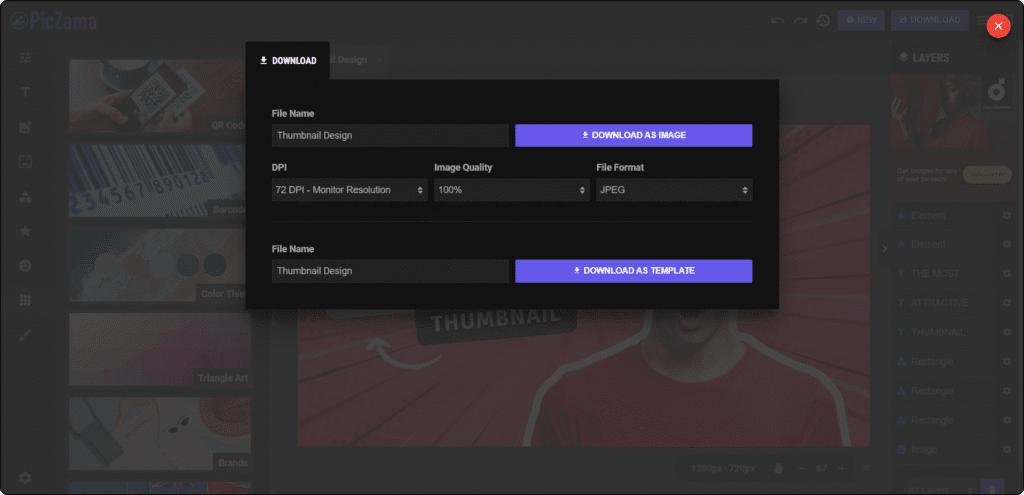
PicZama’s Photo Editor is one of the few online creative tools that combines image DPI converter functionality directly into a full-featured editing environment – no extra tool required. When you download any image from PicZama, you are presented with a full set of DPI options: 72 DPI for monitor and web use, 96 DPI for standard screen output, 144 DPI for mid-range display quality, 300 DPI for professional print-ready output, and 600 DPI for high-resolution printing and detailed artwork. You also control image quality percentage and file format in the same download panel, giving you complete precision over your final output.
The format flexibility is equally strong. PicZama lets you download your work as JPEG, PNG, SVG, WEBP, or TIFF – covering every major use case from web publishing to professional design. This makes it a reliable HD image converter for creators who need to produce the same image across multiple formats without re-uploading files to different platforms. And for users who need to convert a TIFF image to PDF, PicZama’s built-in PDF generator handles this directly. You choose your orientation (Portrait or Landscape), select your page format – including A4 at 841x1189px – add your image, and generate the PDF in one clean workflow.
Pricing Model / Cost
PicZama’s Photo Editor is free to use. The DPI control, format selection, and PDF converter are all accessible without a paid subscription. For more details on any premium features, visit the official PicZama website.
Ideal User / Use Case
PicZama is the ideal starting point for content creators, social media managers, meme makers, and small business owners who want to edit, resize, and convert images in one place. If you are already using the PicZama Meme Generator to create visual content, the Photo Editor’s built-in DPI and format controls mean your finished designs are print-ready and web-ready from the same platform – with no extra tools needed.
Our Verdict: PicZama is the smartest pick for creators who want editing and image DPI conversion in one free, browser-based tool.
2. Clideo
Key Features & Strengths
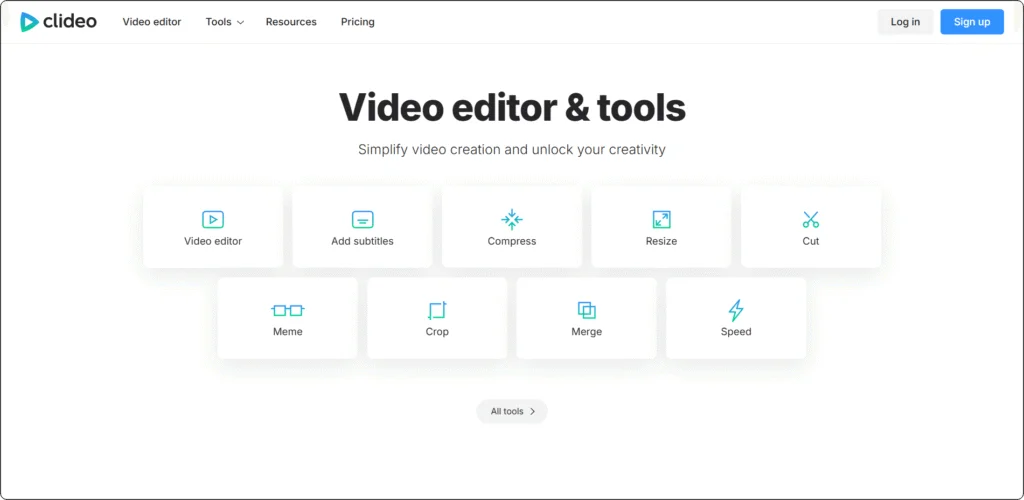
Clideo is a browser-based multimedia platform trusted by over 5 million monthly users, and its dedicated DPI converter is one of the most beginner-friendly options available online. You upload your image, enter your target DPI value, hit convert, and download – the entire process takes under a minute with no software to install. Clideo supports JPG, JPEG, PNG, BMP, WBMP, GIF, WEBP, JP2, and DCM formats, making it a solid HD image converter for everyday creative tasks and standard print preparation. Files are processed in the cloud and automatically deleted after conversion, keeping your data secure.
Beyond DPI, Clideo brings a genuinely comprehensive suite of tools under one roof. It handles image editing, background removal, collage creation, video conversion, audio editing, meme creation, and more – all from the same dashboard. This makes it a natural fit for content creators who need to handle multiple media tasks without bouncing between platforms. It also works seamlessly across desktop and mobile, so you can convert images on any device without compatibility concerns.
Pricing Model / Cost
Clideo offers a free plan that includes access to its core conversion tools, including the image DPI converter. Free exports include a Clideo watermark. A Pro plan removes the watermark and unlocks full tool access. For current pricing, visit the official Clideo website.
Ideal User / Use Case
Clideo is best suited for beginners, social media creators, and casual users who need a simple, reliable image DPI converter without any learning curve. It is especially useful when you also need to handle video or audio in the same session – the all-in-one approach saves significant time.
Our Verdict: Clideo is the go-to pick for beginners who want a fast, no-fuss online image DPI converter with a full multimedia toolkit built in.
3. CloudConvert
Key Features & Strengths
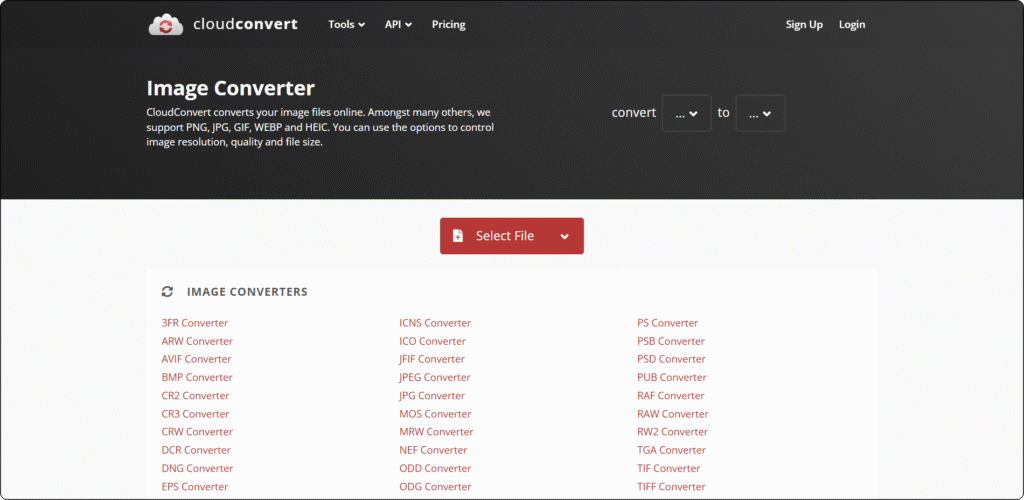
CloudConvert is one of the most respected names in online file conversion, trusted by users and enterprises worldwide since 2012, and ISO 27001 certified for data security. As an image DPI converter and format conversion tool, it stands apart for the level of control it gives you over output settings. When converting images, you can set resolution, color mode, quality level, and output dimensions – all from the same conversion panel. This makes CloudConvert a particularly strong HD image converter for professionals who need precise, repeatable output rather than a simple one-click result.
With support for over 200 formats, CloudConvert handles everything from standard JPEG and PNG conversion to TIFF, WebP, AVIF, SVG, BMP, ICO, and more. If you need to convert a TIFF image to PDF with custom settings, CloudConvert handles this with full control over orientation, dimensions, and quality. Its integration with Google Drive, Dropbox, and OneDrive makes it ideal for teams and professionals who manage image assets in the cloud. An API is also available for developers who need to automate image conversion at scale.
Pricing Model / Cost
CloudConvert offers a free tier with 25 conversions per day. Paid plans unlock higher conversion limits, priority processing, and API access. For current pricing, visit the official CloudConvert website.
Ideal User / Use Case
CloudConvert is the right pick for professional designers, photographers, developers, and business teams who need precise DPI and quality control, high-format coverage, and seamless cloud storage integration in their conversion workflow.
Our Verdict: CloudConvert is the professional’s image DPI converter – precise, secure, and capable of handling even the most demanding format and resolution requirements.
4. Convertio
Key Features & Strengths
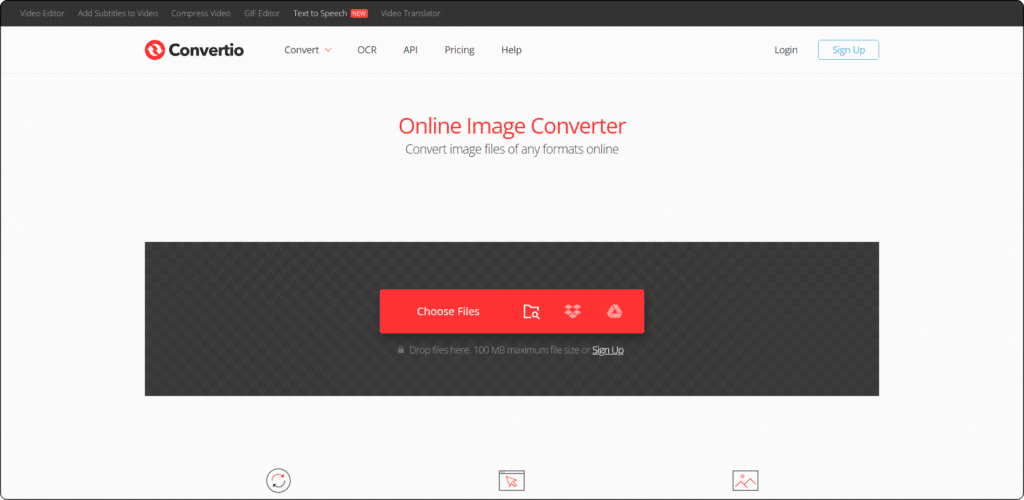
Convertio has built a massive following since 2014, now serving over 10 million monthly users who process more than 1 million files every day. Its strength as an image DPI converter lies in its sheer breadth – supporting over 25,600 conversion types across more than 300 file formats, it covers virtually every image format combination you will ever need. Whether you want to convert an image JPEG to JPG, switch between PNG and WebP, or work with more unusual formats like EPS or PSD, Convertio handles it cleanly through a simple drag-and-drop interface that requires no account to get started.
What sets Convertio apart from simpler tools is its cloud storage integration. You can pull files directly from Google Drive or Dropbox, convert them, and save the result back to the cloud without ever downloading to your local device. This makes it a particularly smooth HD image converter for users who manage large image libraries online. The free tier allows files up to 100MB with 10 conversions per day – more than enough for most individual tasks – and files are automatically deleted within 24 hours for security. Advanced settings let you adjust codec, resolution, and quality for specific conversion types.
Pricing Model / Cost
Convertio offers a free plan with a 100MB file size limit and 10 conversions per day. Paid plans unlock batch processing, larger file support, and higher daily limits. For current pricing, visit the official Convertio website.
Ideal User / Use Case
Convertio is ideal for cloud-first users, content teams, and anyone who regularly needs to convert an image JPEG to JPG or switch between a wide variety of formats without downloading any software. Its Google Drive and Dropbox integration makes it a natural fit for collaborative workflows.
Our Verdict: Convertio is the best pick for cloud-based creators who need a wide format range, fast conversions, and seamless integration with their existing online storage.
5. FreeConvert
Key Features & Strengths
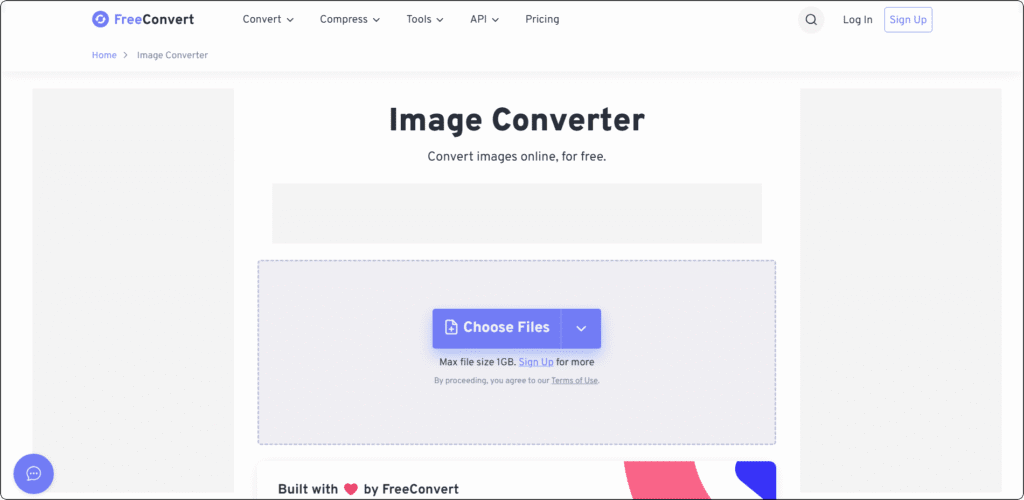
FreeConvert earns its place on this list by doing something most free tools refuse to do – giving generous file size limits without a paywall. The free tier supports files up to 1GB, which is by far the most generous of any major online image DPI converter. This makes it the go-to choice for anyone working with high-resolution TIFF files, large PSD exports, or HD images that routinely exceed the 50MB or 100MB caps imposed by other platforms. Free users also get 25 conversions per day, which covers most daily creative workflows without needing to upgrade.
Beyond file size, FreeConvert stands out for its advanced conversion settings that are available even on the free plan. You can set DPI values, adjust image quality levels, and resize dimensions directly within the conversion panel – giving you control that most free tools reserve for paid subscribers. For users who need to convert a TIFF image to PDF, FreeConvert handles this with solid quality preservation and no forced account creation. It supports all major formats, including JPEG, PNG, WEBP, TIFF, BMP, SVG, ICO, and more, and works directly in the browser across any device.
Pricing Model / Cost
FreeConvert’s free plan includes up to 1GB file size and 25 conversions per day. Paid plans unlock faster processing, batch conversion, and removal of daily limits. For current pricing, visit the official FreeConvert website.
Ideal User / Use Case
FreeConvert is the strongest pick for photographers, print designers, and production teams working with large, high-resolution files that regularly exceed the limits of other free tools. If you regularly work with HD source files or large TIFF exports, no other free HD image converter comes close to its file size allowance.
Our Verdict: FreeConvert is the clear winner for users who need a free, full-featured image DPI converter that handles large HD and TIFF files without size restrictions.
Tips for Getting the Most Out of Image Conversion
Choosing the right image DPI converter is only half the equation. Knowing how to use these tools effectively is what separates sharp, print-ready output from images that disappoint the moment they leave your screen. Whether you are a first-time user or a seasoned content creator, these practical tips will help you get better results every time.
The Basics
- Start with the Highest-Quality Source File: The output of any image DPI converter is only as good as the file you put in. Always convert from your highest-resolution original – never from a compressed or previously converted copy. If your source file is already blurry or pixelated, no HD image converter can recover that lost detail without AI-based upscaling.
- Match DPI to Your Output Destination: Use 72-96 DPI for web and social media content, 150 DPI for standard office prints, 300 DPI for professional print materials, and 600 DPI for fine artwork or technical imagery. Running every image through a 300 DPI setting when you only need web output inflates file sizes unnecessarily and can slow down your uploads when you convert the image from JPEG to JPG for online use.
- Check Format Compatibility Before Converting: Not every platform accepts every format. Before you convert a TIFF image to PDF or switch from PNG to WEBP, confirm that the destination platform or printer supports your chosen output format. Tools like CloudConvert and Convertio both display format support clearly, making it easy to double-check before you commit.
The Pro Strategy
- Use PicZama as Your First Step Before Exporting: If you are building visual content – memes, social graphics, or branded images – start in the PicZama Photo Editor, where you can set your DPI, choose your format, and download your final image all in one place. This eliminates the need to run a separate conversion tool for most everyday tasks.
- Leverage Cloud Integration for Large Batches: When working with large sets of images, use Convertio or CloudConvert’s Google Drive integration to convert files directly from your cloud storage. This avoids slow local uploads, keeps your files organized, and makes the whole process significantly faster when you need to convert an image from JPEG to JPG across an entire project folder.
- Know When Free Limits Will Slow You Down: Most free tiers cap daily conversions between 10 and 25 files. If you have a heavy workload – large TIFF exports, batch HD image files, or ongoing print production – plan your conversion sessions around those limits or use FreeConvert’s generous 1GB free tier to handle the heaviest individual files first.
If you want to go deeper on how image formats work and which settings produce the best output for different platforms, the best free photo editors post on PicZama’s blog covers the top editing platforms that pair perfectly with these conversion tools – helping you build a complete image preparation workflow from editing all the way through to final export.
Comparison Table: Top 5 Image DPI Converter Picks
| Tool | Pricing | DPI Control | Format Support |
|---|---|---|---|
| PicZama Photo Editor | Free | 72, 96, 144, 300, 600 DPI | JPEG, PNG, SVG, WEBP, TIFF, PDF |
| Clideo | Freemium | Custom DPI input | JPG, PNG, GIF, WEBP, BMP, and more |
| CloudConvert | Freemium | Custom DPI + quality + color mode | 200+ formats including TIFF and PDF |
| Convertio | Freemium | Resolution and quality settings | 300+ formats, 25,600+ conversions |
| FreeConvert | Free | DPI, quality, resize on free plan | JPEG, PNG, TIFF, WEBP, SVG, PDF |
Best Choice For – Our Final Recommendation
- Best overall: PicZama Photo Editor – the only pick that combines editing, DPI control, format conversion, and PDF generation in a single free platform
- Best free option: FreeConvert – the most generous free tier with a 1GB file size limit and full DPI settings at no cost
- Best for beginners: Clideo – the simplest interface with no learning curve and a full multimedia toolkit included
- Best for professionals: CloudConvert – ISO 27001 certified, 200+ formats, and the most precise DPI and quality controls available online
- Best for PicZama users: PicZama Photo Editor – because DPI selection, format conversion, and PDF output are all built directly into the tool you are already using, making it the most seamless workflow of all five picks
If you are looking to go beyond conversion and learn how to edit and enhance your images before exporting them, check out the best free meme generators post on PicZama’s blog – a great companion read for content creators who want to build a complete visual content workflow from creation through to final export.
Conclusion: Elevate Your Image Quality with Our Top 5 Picks
Getting your DPI settings right is one of the simplest ways to immediately improve the quality of everything you create – from social media graphics to professional print materials. The five tools in this list cover every level of need, from beginner-friendly browser tools to professional-grade converters with advanced DPI, quality, and format controls. And if you want the most seamless experience of all, PicZama’s Photo Editor gives you DPI control, multi-format download, and a built-in PDF converter in one free platform – no extra tools required.
Start with PicZama for your everyday editing and conversion needs, and keep CloudConvert, Convertio, Clideo, or FreeConvert in your toolkit for the jobs that need extra format power or larger file handling. With the right image DPI converter in your workflow, your images will always look exactly as sharp and professional as you intended – no matter where they end up.